How to Use Zotero with NotebookLM for Research Workflows
Use Zotero to manage citations and source libraries, then move selected PDFs into NotebookLM for source-grounded reading, synthesis, and literature review notes.
Zotero and NotebookLM fit together well, but not because Zotero has a magic one-click sync into NotebookLM. They fit because they solve different jobs in the same research workflow.
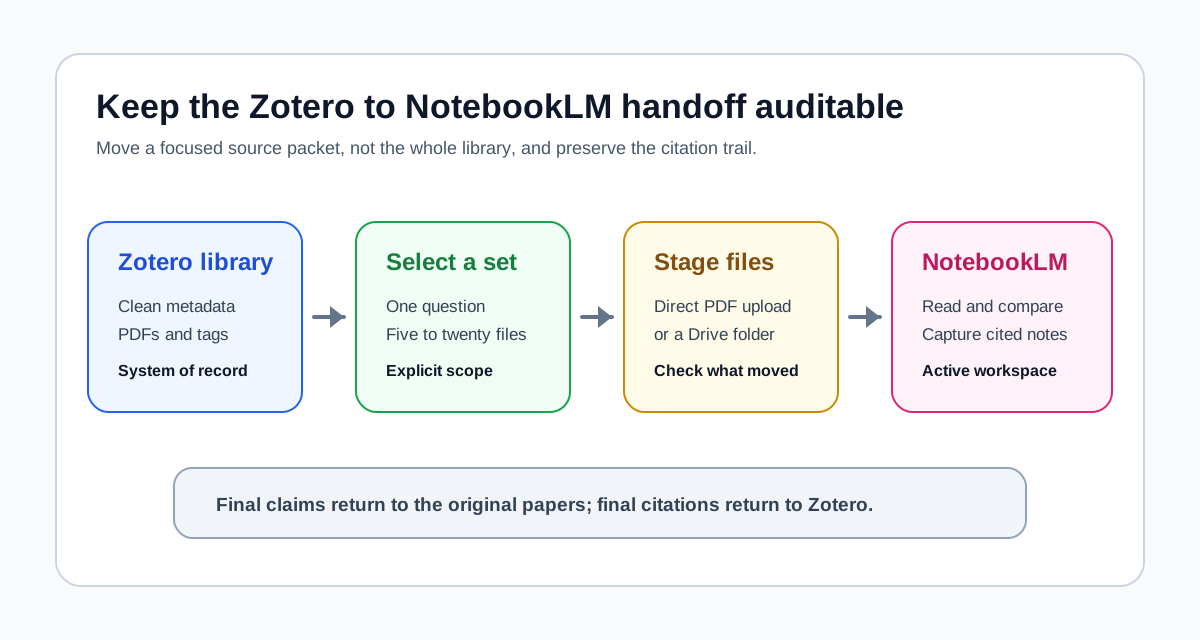
Use Zotero as the durable library: collect sources, clean metadata, organize PDFs, and cite correctly later. Use NotebookLM as the active reading room: upload a focused source set, ask grounded questions, compare papers, and turn reading into usable synthesis notes.
Zotero is where your research library lives. NotebookLM is where a selected subset of that library becomes readable. Google Drive sources in NotebookLM can now stay up to date automatically, but that is not the same as direct Zotero sync. The safest workflow is: collect and organize in Zotero, choose a small working set, use Drive staging when sync helps, take synthesis notes in NotebookLM, then return to Zotero and the original papers for final citations.
If you are still deciding whether these tools overlap, start with the NotebookLM vs Zotero comparison. For a broader stack choice, use the AI research tool selector. This guide assumes you have already decided to use both.
If your source packet changes over time, read the newer NotebookLM Google Drive sync workflow before deciding whether to upload static PDFs or stage sources in Drive.
If your immediate bottleneck is low-focus literature screening rather than active note synthesis, use the more specific Zotero to NotebookLM Audio Overview workflow after you have selected a small paper set.
Check the next step for your research workflow
Pick the situation closest to yours. The recommendation updates inside the article, so you can keep reading with a clearer path.
Zotero -> selected working set -> NotebookLM -> checked draft
Start with Zotero because citations need a durable source library and clean metadata, then AI can help with reading and drafting around that library.
- 1Filter the library into one working set before uploading or summarizing anything. Keep Zotero as the system of record.
- 2Check metadata, DOI, authors, and bibliography output before the final draft leaves your workflow.
- 3Keep citations in Zotero, reading notes in your source workspace, and final claims tied back to original papers.
The workflow in one table
| Research job | Use Zotero | Use NotebookLM | Use together |
|---|---|---|---|
| Build the library | Save papers, PDFs, metadata, tags, and collections | Not the main tool for this stage | Keep Zotero as the durable source system |
| Choose a working set | Filter one collection down to the papers that matter now | Create a notebook for that selected set | Move only the active subset, not the whole library |
| Read across sources | Open originals and keep source identity clear | Ask grounded questions across the uploaded set | Use NotebookLM for patterns, then verify in the PDFs |
| Synthesize findings | Preserve clean records for each source | Compare methods, claims, themes, and disagreements | Turn answers into notes tied back to specific papers |
| Draft and cite | Insert citations and generate the bibliography | Support outlines, evidence maps, and draft notes | Cite original sources through Zotero, not AI output |
This split is the whole point. Zotero is the system of record. NotebookLM is the workspace for a project, chapter, question, or reading packet.
Choose the right handoff path
The best Zotero to NotebookLM workflow depends on how stable your source packet is. Do not choose the most automated-looking option if it makes the source trail harder to audit later.
| Situation | Best handoff | Why it works |
|---|---|---|
| You have a fixed paper set for one section or assignment | Upload the selected PDFs directly to a NotebookLM notebook | It is simple, easy to verify, and keeps the notebook focused. |
| The packet will change while you work | Stage selected files in a focused Google Drive folder, then add those Drive sources to NotebookLM | Drive staging can reduce refresh friction while Zotero remains the library of record. |
| You are still collecting papers | Stay in Zotero, Elicit, Google Scholar, or library databases first | NotebookLM is not the discovery layer; it works better after the source set is chosen. |
| You need final citations or a bibliography | Return to Zotero before drafting the final version | NotebookLM notes can guide synthesis, but Zotero should own citation metadata and bibliography output. |
This is also why the workflow is useful for readers searching "Zotero to NotebookLM" or "NotebookLM Zotero integration." The practical answer is not a hidden sync button. It is a disciplined handoff: Zotero stores the research record, NotebookLM helps you read the active subset, and Zotero comes back at the citation stage.
Step 1: Build the source library in Zotero
Start in Zotero before you open NotebookLM. Zotero is built to capture sources with bibliographic metadata, attach PDFs, organize them into collections, and keep citations reusable across drafts.
For most academic sources, the cleanest path is to save the article page with the Zotero Connector rather than dragging in a loose PDF first. Zotero's documentation explains that the connector can capture higher-quality metadata and attach available PDFs when access allows. If you already have a local PDF, you can drag it into Zotero, but you should still make sure it has a parent item with correct metadata.
Use this stage to:
- collect sources from databases, journals, Google Scholar, or publisher pages
- attach or retrieve PDFs where available
- check titles, authors, journal names, years, and DOI fields
- create collections for the project, chapter, class, or review question
- tag items if you need a faster way to filter later
This matters because NotebookLM does not replace a reference manager. It can help you understand sources, but Zotero is still where the citation layer should stay clean.
Step 2: Select a small working set
Do not move your whole Zotero library into NotebookLM. That is usually where the workflow gets messy.
Instead, select a small working set around one task:
- one literature review section
- one seminar topic
- one research question
- one methods comparison
- one chapter draft
- one paper cluster you need to understand this week
For most projects, a useful first notebook is smaller than your full bibliography. A focused set of five to twenty sources is easier to question, compare, and verify than a large dump of loosely related material.
The goal is not to make NotebookLM your library. The goal is to make a temporary reading room for the specific sources you need right now.
Step 3: Move selected sources into NotebookLM
Once the working set is clear, move the selected files or documents into NotebookLM.
NotebookLM supports several source types, including PDFs, Google Docs, Google Slides, Google Sheets, Word documents, text and Markdown files, CSV files, web URLs, ePub files, and some image and audio formats. In May 2026, Google announced automatic Drive syncing for NotebookLM sources, which means Drive-based sources can stay current when the underlying Drive files change.
That detail helps, but it does not make Zotero a live NotebookLM source. NotebookLM is still not automatically staying in sync with every item, tag, note, or PDF in your Zotero library. Treat the Zotero-to-NotebookLM handoff as a deliberate selection step. If the source packet needs to keep changing, stage the active set in Google Drive and add those Drive sources to NotebookLM.
A practical handoff looks like this:
- In Zotero, open the project collection.
- Choose the papers that actually belong in the current reading task.
- Open or locate the attached PDFs.
- If the packet will change, place the selected files or notes in a focused Google Drive folder.
- Create a new NotebookLM notebook for that project or question.
- Add the selected PDFs, Drive files, or source documents.
- Name the notebook clearly, such as
AI feedback literature review - methods section.
If you update a Drive source later, check the source behavior in NotebookLM and confirm the notebook reflects the current file. If you update a Zotero record, Zotero note, or local PDF outside Drive, do not assume NotebookLM has seen that change.
In a realistic week, this usually feels less like a formal export process and more like a handoff. You might collect twenty papers in Zotero, skim abstracts on Monday, tag eight as relevant to one section, stage the active files in Drive, add them to a NotebookLM notebook, use the notebook to find themes and disagreements, then return to Zotero when you draft so every claim can be checked against the original paper and cited from the reference manager.
Audit what survives the handoff
The most important quality check happens immediately after import. Open one representative source in Zotero and the corresponding source in NotebookLM, then compare what is still available.
| Item to check | Direct PDF upload | Drive-staged document | Where the durable record belongs |
|---|---|---|---|
| Paper text | Available when the PDF imports successfully | Available from the supported Drive source | Original PDF and Zotero attachment |
| Bibliographic metadata | Do not assume Zotero fields moved with the file | Only content in the staged document is available | Zotero parent item |
| Zotero collections and tags | Not transferred by uploading a PDF | Not transferred unless you deliberately write them into the document | Zotero |
| Zotero notes and annotations | Not transferred automatically | Available only if you export or copy them into a supported source | Zotero or your project notes |
| NotebookLM citations | Point back into the imported source context | Point back into the imported Drive source | Use for verification, not bibliography generation |
| Later source updates | Re-upload the changed file | Drive sources can sync when the underlying file changes | Confirm the current version before drafting |
Use one simple acceptance test: ask NotebookLM a narrow question whose answer appears in a known paragraph, open the citation, and confirm that it lands on the correct source passage. If it does not, stop and fix the source packet before asking broader synthesis questions.
This checkpoint matters because a successful upload only proves that NotebookLM accepted a file. It does not prove that Zotero metadata, tags, notes, or citation relationships survived. Zotero's own documentation also recommends preserving high-quality parent-item metadata rather than treating a loose PDF as the complete research record.
Step 4: Use NotebookLM for source-grounded reading
NotebookLM becomes useful once the source set is stable. This is where it can help you move from paper-by-paper reading into cross-source understanding.
Good questions sound like this:
- What do these sources agree on?
- Where do these papers disagree?
- Which methods appear most often?
- Which paper uses the strongest evidence for this claim?
- What are the main limitations across the source set?
- Which studies are empirical, theoretical, review-based, or methodological?
- What themes should I use to organize a literature review section?
This is different from asking a general chatbot to invent a literature review. NotebookLM is useful here because the answers are constrained by the source set you uploaded.
Still, keep your judgment in the loop. Use NotebookLM to find patterns and generate notes, then check important claims in the original papers before you cite them.
Step 5: Bring notes back into the writing workflow
NotebookLM notes are not citations. Treat them as synthesis notes that help you draft more clearly.
A safe writing handoff looks like this:
- Use NotebookLM to summarize themes, disagreements, and methods across the source set.
- Copy useful notes into your own outline or draft notes.
- Check each important claim against the original paper.
- Use Zotero to insert citations into Word, Google Docs, or LibreOffice.
- Let Zotero generate or update the bibliography.
This keeps the chain of evidence intact:
Original paper -> Zotero record -> NotebookLM synthesis note -> verified draft claim -> Zotero citation
That chain is what prevents the workflow from becoming a pile of AI-generated prose with fragile references.
A practical Zotero to NotebookLM workflow
Here is the complete sequence I would use for a literature review section:
- Search for papers using Google Scholar, Elicit, Semantic Scholar, or a library database.
- Save relevant papers into Zotero with clean metadata.
- Create a Zotero collection for the review section.
- Read abstracts and remove papers that are clearly off-topic.
- Select the most relevant PDFs for active reading.
- Upload that subset into a NotebookLM notebook.
- Ask NotebookLM to compare methods, findings, limitations, and themes.
- Turn those answers into your own synthesis notes.
- Draft the section from verified notes.
- Cite sources with Zotero, not with NotebookLM output.
That workflow is deliberately conservative. It uses AI where it helps and keeps citation control in the tool built for citation control.
If you want the larger tool map around this sequence, the AI research workflow by stage explains where Zotero, NotebookLM, Elicit, Perplexity, ChatGPT, and Google Scholar fit.
Common mistakes
Mistake 1: Uploading everything
NotebookLM works better when the source set has a purpose. Uploading every paper in your Zotero library creates noise. Start with a narrow set tied to one question or section.
Mistake 2: Treating NotebookLM as a citation manager
NotebookLM can help you understand sources, but it is not your bibliography system. Keep final citations in Zotero.
Mistake 3: Trusting synthesis before checking the paper
AI can help you see patterns, but it can also compress nuance. Before using a claim in a paper, open the original source and verify the method, population, result, and limitation.
Mistake 4: Losing the source trail
If a NotebookLM answer is useful, write down which source it came from and why it matters. Do not let useful wording become detached from the paper that supports it.
Mistake 5: Confusing Drive sync with Zotero sync
You can use Zotero with NotebookLM in a workflow. Google Drive sources can now reduce some refresh friction in NotebookLM, but that does not mean Zotero and NotebookLM are officially integrated. Be precise about the handoff: Zotero is the library, Drive can be the staging layer, and NotebookLM is the reading room.
When this workflow is best
This Zotero and NotebookLM workflow is strongest when:
- you already have PDFs or papers collected
- you need to read across several sources
- citation accuracy matters
- the project will continue beyond one chat session
- you want AI help without losing source control
It is less useful when:
- you only need a quick answer
- you have not found the right papers yet
- the source set is too messy to trust
- you need a formal systematic review protocol
- your institution has strict rules against uploading certain materials to external tools
If you are still comparing tool categories, the best AI literature review tools guide is the better starting point.
Final recommendation
Use Zotero as the library. Use NotebookLM as the reading room.
That simple division keeps the workflow sane. Zotero keeps sources, metadata, citations, and bibliographies under control. NotebookLM helps you work through a focused subset of those sources and turn reading into clearer synthesis notes.
The strongest version of the workflow is not "connect everything and let AI handle it." It is more disciplined: collect carefully, select deliberately, read with AI support, verify against the original papers, and cite through the reference manager.
FAQ
Sources checked
- NotebookLM Help: Add or discover new sources for your notebook
- NotebookLM Help: Create a notebook
- Google Workspace Updates: Keep your sources up to date with automatic Drive syncing in NotebookLM
- Zotero Documentation: Adding items to Zotero
- Zotero Documentation: Exporting
- Zotero Documentation: Word processor integration